

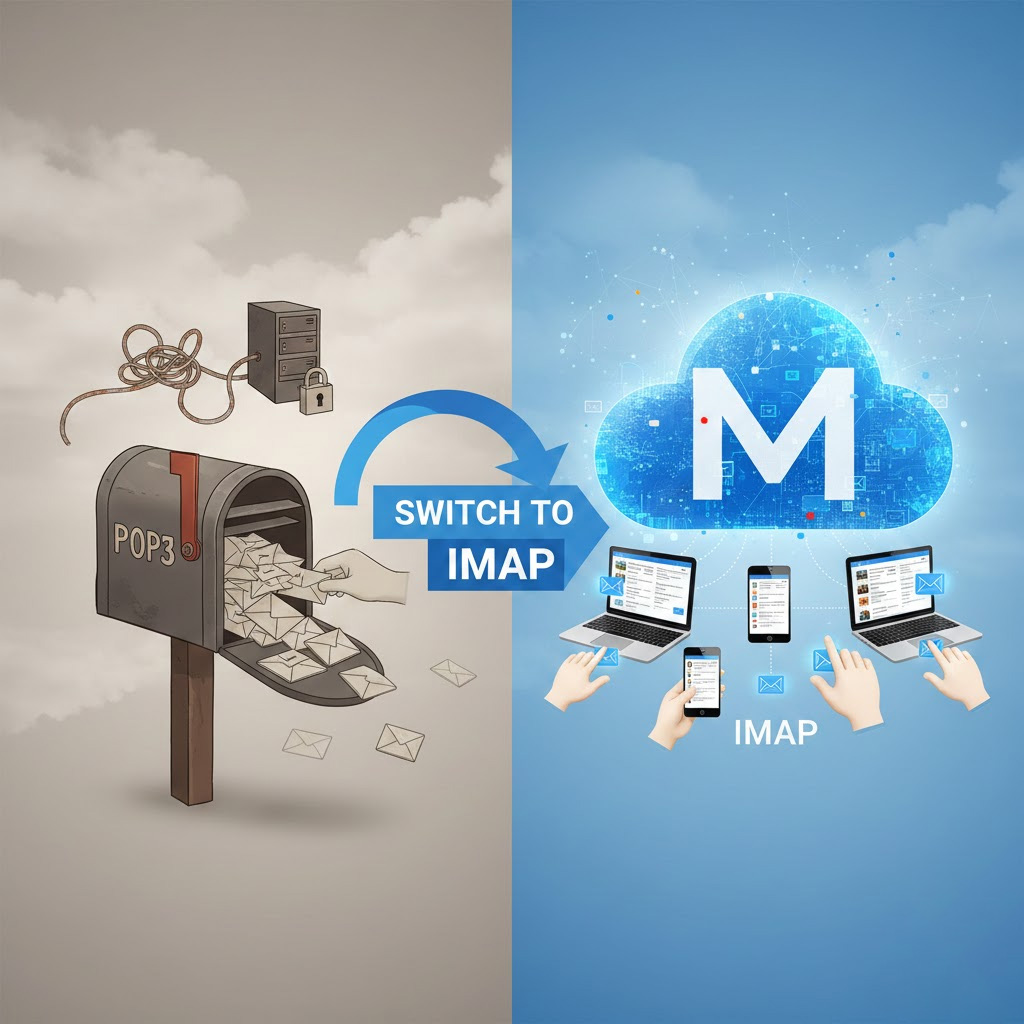
How to Fix Gmail POP3 Errors: Switch to IMAP for Your Business Email
Google has announced a major update for 2026: the "Check mail from other accounts" (POP3) and "Gmailify" features are being retired from the Gmail website. If you have been using Gmail.com to manage your custom business email, you will soon stop seeing new messages arrive in your inbox.
To ensure your business stays online, you must switch to one of the following methods using IMAP. Unlike the old system, IMAP keeps your mail in sync, so if you read an email on your phone, it shows as read on your computer instantly.
Option 1: Use a Desktop App (Mac Mail or Outlook)
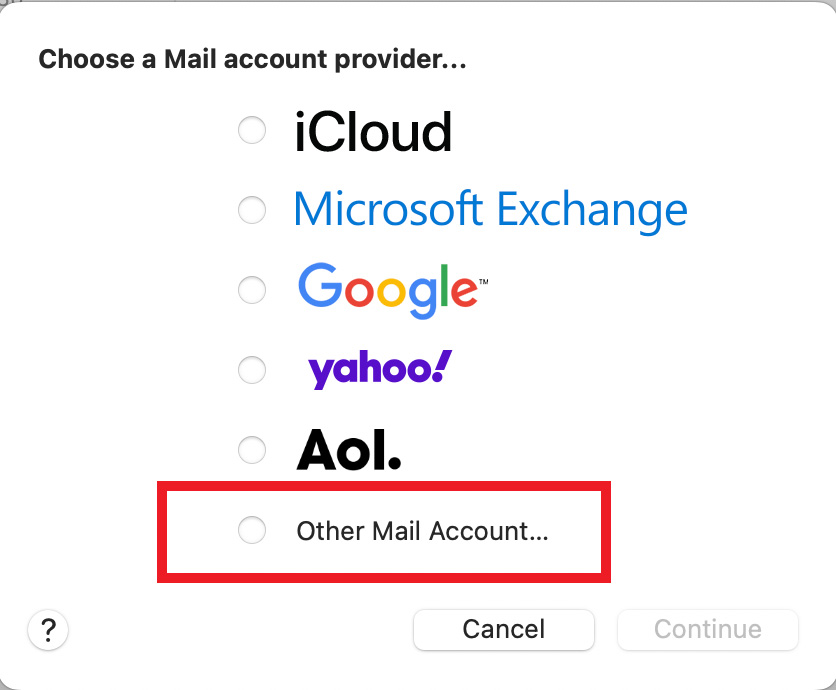
The most reliable way to check your mail on a computer is to use a program installed on your machine. This ensures a fast, direct connection to your server without relying on a web browser.
For Windows users, use Microsoft Outlook. For Mac users, use the built-in Mail app (the postage stamp icon). It is important to remember that these are programs you download and install, not websites like outlook.com.
When adding your account, always select IMAP as the account type. This ensures that your Sent and Deleted folders stay identical across all your devices.
Option 2: Use the Gmail App on Your Mobile Phone

While the Gmail website is removing the ability to fetch mail, the Gmail mobile app for iPhone and Android still works perfectly with IMAP connections.
To set this up, open the Gmail app and tap your profile picture in the top right corner. Select "Add another account" and choose "Other (IMAP)." Enter your business email address and password, then follow the prompts to enter the server settings found at the bottom of this article.
Option 3: Access Webmail Directly via Roundcube
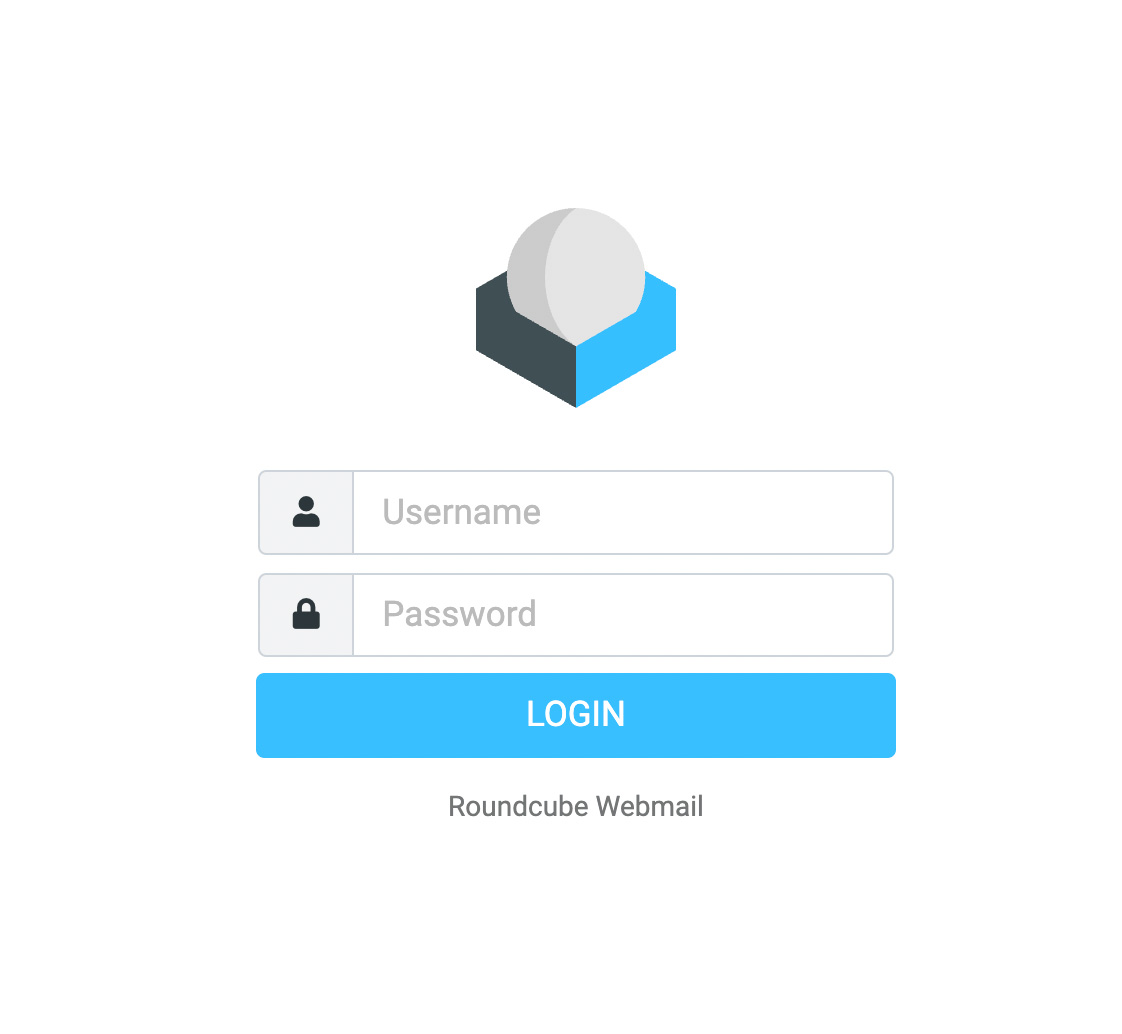
Every account we host includes a professional web-based inbox that you can access from any browser, anywhere in the world, without any technical setup.
You can reach your mail by going to https://webmail.domain.com or https://domain.com/roundcube (Replace domain.com with your actual domain) Log in using your full email address and your standard password.
Option 4: How to Set Up Email Forwarding
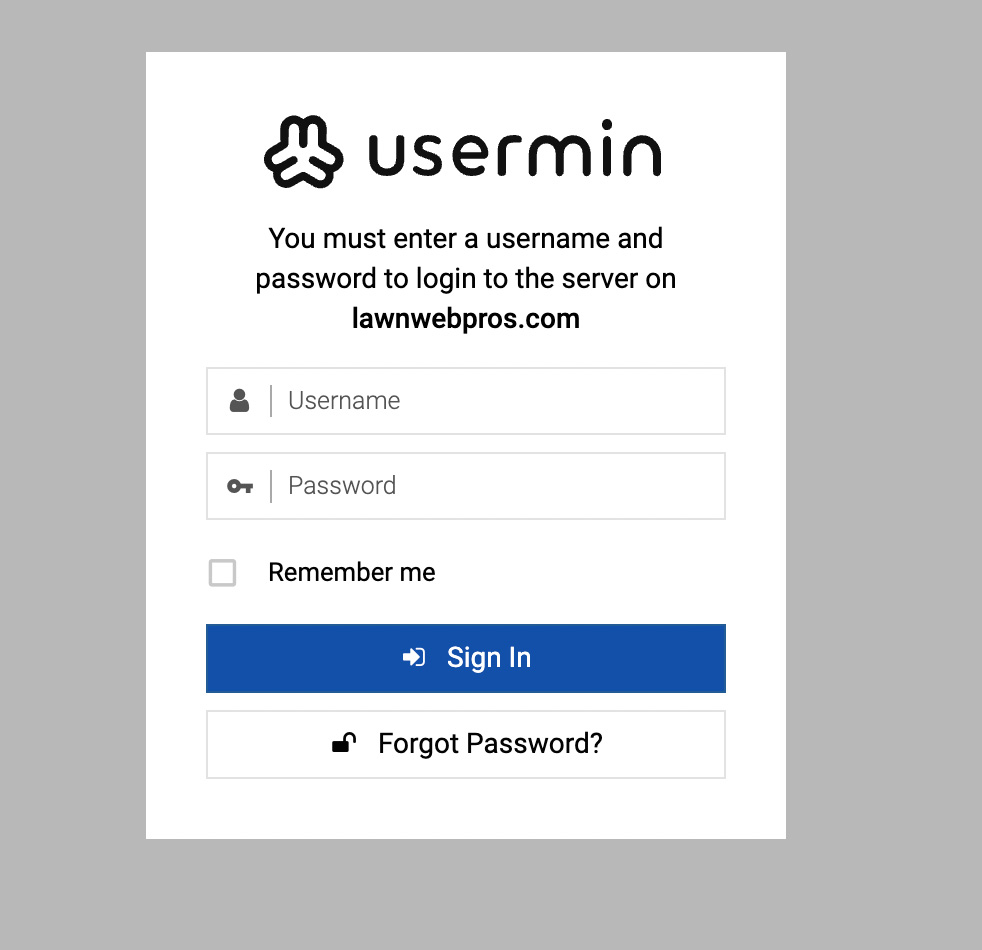
If you prefer to continue seeing your business mail inside your personal Gmail inbox, you must set up an email forwarder. This "pushes" the mail to Gmail since Google will no longer "pull" it for you.
To do this, log in to your webmail at https://webmail.domain.com (replace domain.com with your actual domain Instead of clicking the button to open your inbox, look for the Webmail Home dashboard and find the section labeled "Forwarders." Click "Add Forwarder" and enter your personal Gmail address. A copy of every incoming business email will now be sent to your Gmail automatically.
Your Universal IMAP Connection Settings
📥 Incoming Mail Server (Receiving) (IMAP)
This is how your app "fetches" mail from the server.
- Server: mail.yourdomain.com (Replace yourdomain.com)
- Port: 993
- Security: SSL/TLS
📤 Outgoing Mail Server (Sending) (SMTP)
This is how your app "sends" mail out to the world.
- Server: mail.yourdomain.com (Replace yourdomain.com)
- Port: 587
- Security: STARTTLS